

Categories
Archives
- October 2012
- September 2012
- May 2012
- April 2012
- March 2012
- November 2011
- October 2011
- September 2011
- July 2011
- May 2011
- April 2011
- March 2011
- February 2011
- October 2010
- August 2010
- May 2010
- March 2010
- February 2010
- November 2009
- September 2009
- July 2009
- June 2009
- May 2009
- April 2009
- March 2009
- February 2009
- December 2008
- October 2008
- September 2008
- July 2008
- June 2008
NetStat Agent 3.5 with new features
We are excited to announce that NetStat Agent 3.5 has been released with new cool features:
- Added two columns for netstat tool: hostname and timestamp.
- Added parent process and parent path fields to “Properties” window.
- Added “Hosts.ini” file for quick DNS resolving.
- Added CLOSING state to netstat monitor.
- Added option to enable\disable DNS caching.
- Fixed netstat column sorting.
- Fixed text of ARP logging option.
Hope you will find new changes useful!
- October 22nd, 2012
- 1 Comment
NetStat Agent 3.4 with a 25% OFF discount
We are happy to inform you that we are finishing with development of NetStat Agent 3.5 and we would like to give you special offer - NetStat Agent with a 25% OFF discount. This offer is valid until version 3.5 will not be released.
Get NetStat Agent while it’s hot! The coupon code is “NetStat” (without quotes).
- September 28th, 2012
- 0 Comments
NetStat Agent 3.4
We are excited to announce that NetStat Agent 3.4 has beed released. In this version we updated netstat, ipconfig and statistics tools.
First of all, we found the way how to print DNS cache information in the table without calling “ipconfig /displaydns”.
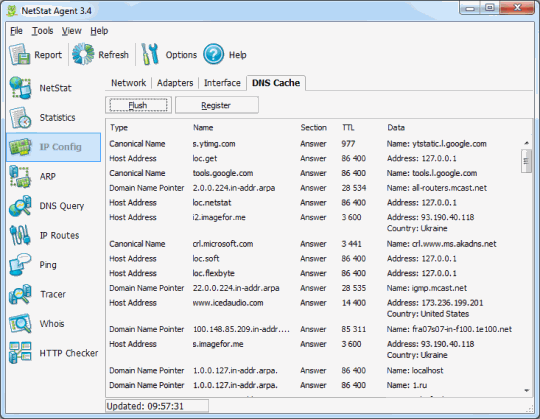
For netstat tool we added two buttons in the status bar to control auto refresh and logging. Also was fixed the issue with scrolling when netstat shows a lot of dynamic connections in the list and a connection is selected.

NetStat Agent 3.4 now can show IPv6 network statistics. Also we improved software stability - thanks everyone who sent crash reports to us!
- March 12th, 2012
- 0 Comments
Real NetStat 3.1
We are happy to announce that Real NetStat 3.1 has been released. In this version we added IPv6 for connection monitoring and TCP/IP statistics.
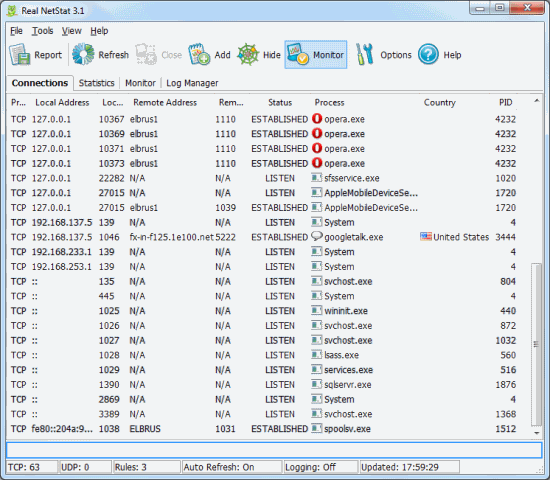
Now all protocols (TCP, UDP, IP and ICMP) shows IPv6 statistics.
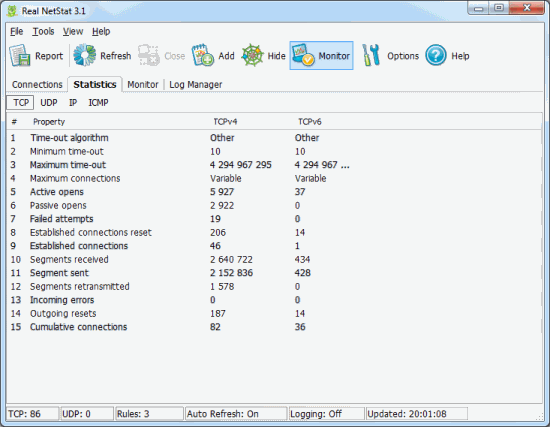
Also was fixed the problem with copy text to the clipboard and the conflict with Sticky Password utility. The issue with saving HTML report is fixed in this version too.
Real NetStat is the great visual alternative tool to the command line netstat.exe for live connection monitoring!
- November 19th, 2011
- 1 Comment
NetStat Agent 3.3.4
NetStat Agent 3.3.4 has been released.
In this version there was solved the issue with MAC address changer (ipconfig tool) which caused the program to crash.
Last time we received some feedback about problems with the registration program. Before this version it was possible to use the registered program in all user accounts on the PC. But from now, the registration of NetStat Agent will be attached to user account. It means that you must enter license information in each user account.
But as alternative,it is still possible to use the portable NetStat Agent version for all users.
- October 17th, 2011
- 0 Comments