
Categories
Archives
- October 2012
- September 2012
- May 2012
- April 2012
- March 2012
- November 2011
- October 2011
- September 2011
- July 2011
- May 2011
- April 2011
- March 2011
- February 2011
- October 2010
- August 2010
- May 2010
- March 2010
- February 2010
- November 2009
- September 2009
- July 2009
- June 2009
- May 2009
- April 2009
- March 2009
- February 2009
- December 2008
- October 2008
- September 2008
- July 2008
- June 2008
Localization, whois and price
The user interface of NetStat Agent 3.2 supports French and Brazilian Portuguese languages (thanks a lot to Milton for localization!). And this is not end. German and Spanish languages will be available soon.
We also fixed the Whois server address for .NZ domain zone (special thanks to Paul for found issue and solution).
And today… The price per NetStat Agent unit was increased to 34.95 USD.
- February 28th, 2011
- 0 Comments
NetStat Agent 3.2
We are happy to announce a new release of NetStat Agent 3.2. The portable version is also released today. In this version we added some new features:
- Now the application can be minimized instead of close. This option is available in the general options.
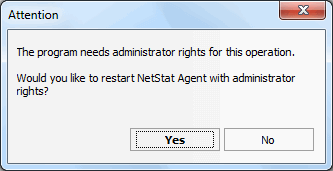
- If you run the program without administrators rights and tries to complete the operation (like close TCP connection or terminate a process) that needs admin rights, the application will suggest you to restart it with admin rights.
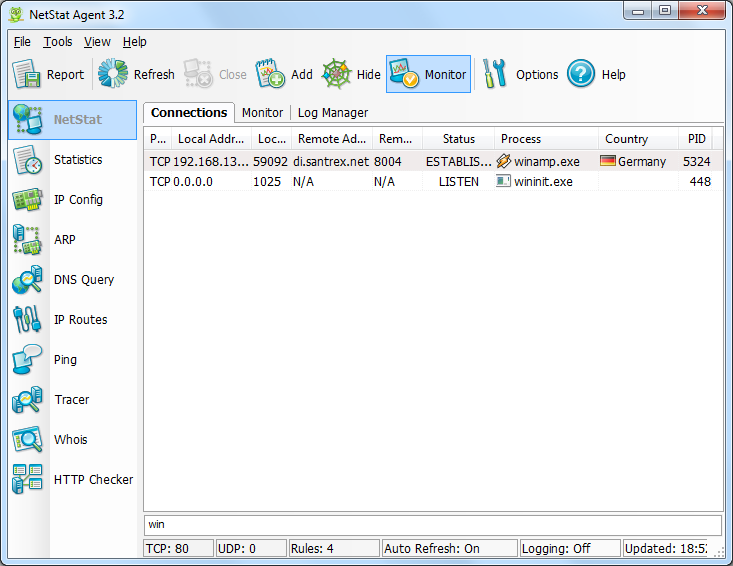
- A search filter to netstat utility for a quick connection search. This feature can be useful if you has a lot connections and on current moment you want to monitor connections of known process. So all that you need is just type a process name to a search window to get a result.
- IP-to-country database is updated.
In the nearest future we plan to localize the user interface of NetStat Agent 3.2 to German, French and Spanish languages.
- February 13th, 2011
- 0 Comments
What will be new in NetStat Agent 3.2?
At the middle of February will be released a new version of NetStat Agent.
In this version will be improved only netstat tool. We plan to add a filter for a quick search as we already have in Handy Uninstaller software.
Also we plan to increase the price per NetStat Agent unit with new version release. So you have a good chance to by per life license for only 29.95 USD!
- February 1st, 2011
- 0 Comments
NetStat Agent Portable 3.1.1
We are pleased to announce the portable version of NetStat Agent 3.1.1. It has the same features as described in “NetStat Agent 3.1.1” topic, but also we added missed parameters for netstat monitor (see Run batch scripts with NetStat Agent):
%COUNTRY% - shows a country (only for TCP non-local connections)
%CCODE% - a country ISO code like RU, EU, etc.
Enjoy the new portable version!
- October 17th, 2010
- 0 Comments
Run batch scripts with NetStat Agent
In NetStat Agent 3.1 we added an ability to run batch scripts (in previous versions only executable files could be run). And because a launched third party program can show a window, we added new properties to user interface: program parameters (such as process name, remote ip, etc.) and an option to show\hide a program window.
On current moment the program supports the following parameters:
Continue reading Run batch scripts with NetStat Agent
- October 9th, 2010
- 0 Comments